
Adding Express AI to an existing trading partner portal creates a change in workflow, where Unknown Customer alerts become Document Entry alerts.
Overview
Before adding Conexiom Express AI, documents with no matching assign key are flagged to users as an Unknown Customer alert. After adding Express AI, Unknown Customer alerts are replaced with Document Entry alerts instead.
This article pertains to environments under the following conditions:
-
Conexiom Express AI has recently been deployed in a portal that contains pre-existing trading partners
-
Express AI is set as Production status while still undergoing modification and validation
-
Backend process configurations may still be in progress
-
Submission and delivery of test documents continue until the customer organization is completely ready
-
Test versus Production documents are defined by being sent to the corresponding order processing email on the Company page
-

New workflow for ‘Unknown Customer’ Alerts
Before adding Express AI, documents with no matching assign key were flagged as an “Unknown Customer Alert,” which displayed as follows:

However, with Express AI enabled, all documents which previously triggered an Unknown Customer alert now trigger a Document Entry alert.
New Alert type: Document Entry
Alerts for Express AI documents will now display with the new Document Entry alert type. While you can access this alert, setup is still in progress, so any errors you see may not be reflective of the final setup.

At this point, the workflow remains the same as that of an Unknown Customer alert: reassign the document to a trading partner, or dismiss the document. To make this choice, follow these steps:
-
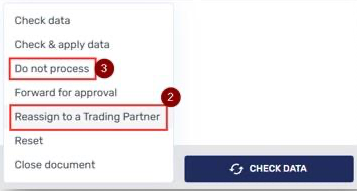
Open the alert and you’ll be met with the Express AI interface, which your Conexiom Representative will review with you in more detail. For now, navigate to the bottom of the page and click the arrow (1) on the Select field, next to Check Data, to display the drop-down menu.

-
From the drop-down menu, select the option to either Reassign to a Trading Partner (2) or Do Not Process (3) the document.
If you choose to reassign, a pop-up dialogue box will allow you to search and select a trading partner.
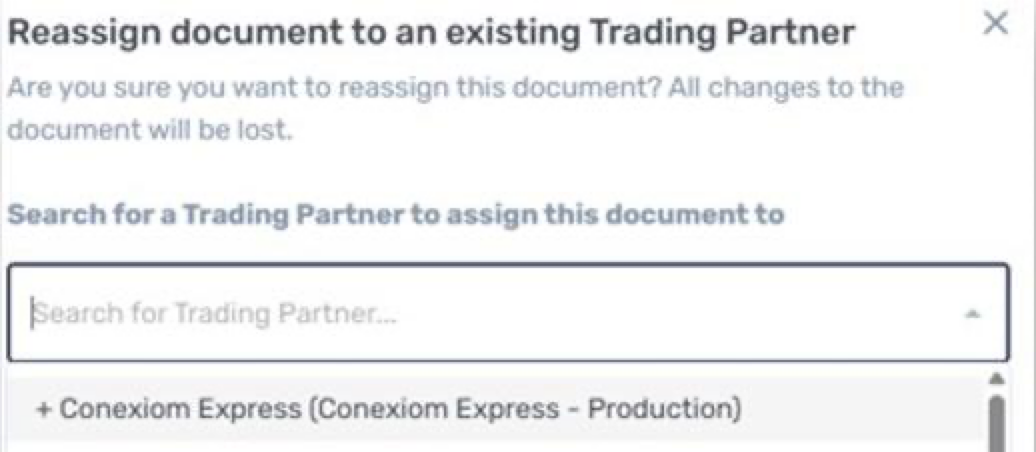
Confirm your choice by clicking Reassign Document.

Click here to learn more about Document Entry alerts and the Express AI workflow.