
Configure automation workflows, AI confidence thresholds, prediction handling, check actions, and field mapping behavior in Express.
Setting Up Express
The Express Settings page allows you to customize how documents are processed and reviewed, balancing automation, control, and data accuracy. Key settings include document automation levels, confidence thresholds used to flag predictions for review, how queued documents are reprocessed when AI models are updated, the default check action applied after data changes, and how field mappings are handled when system updates occur.
Access to the Express Settings page must be enabled for each user role. To grant the necessary permissions, see Allowing Authorization To Access Express Settings Page
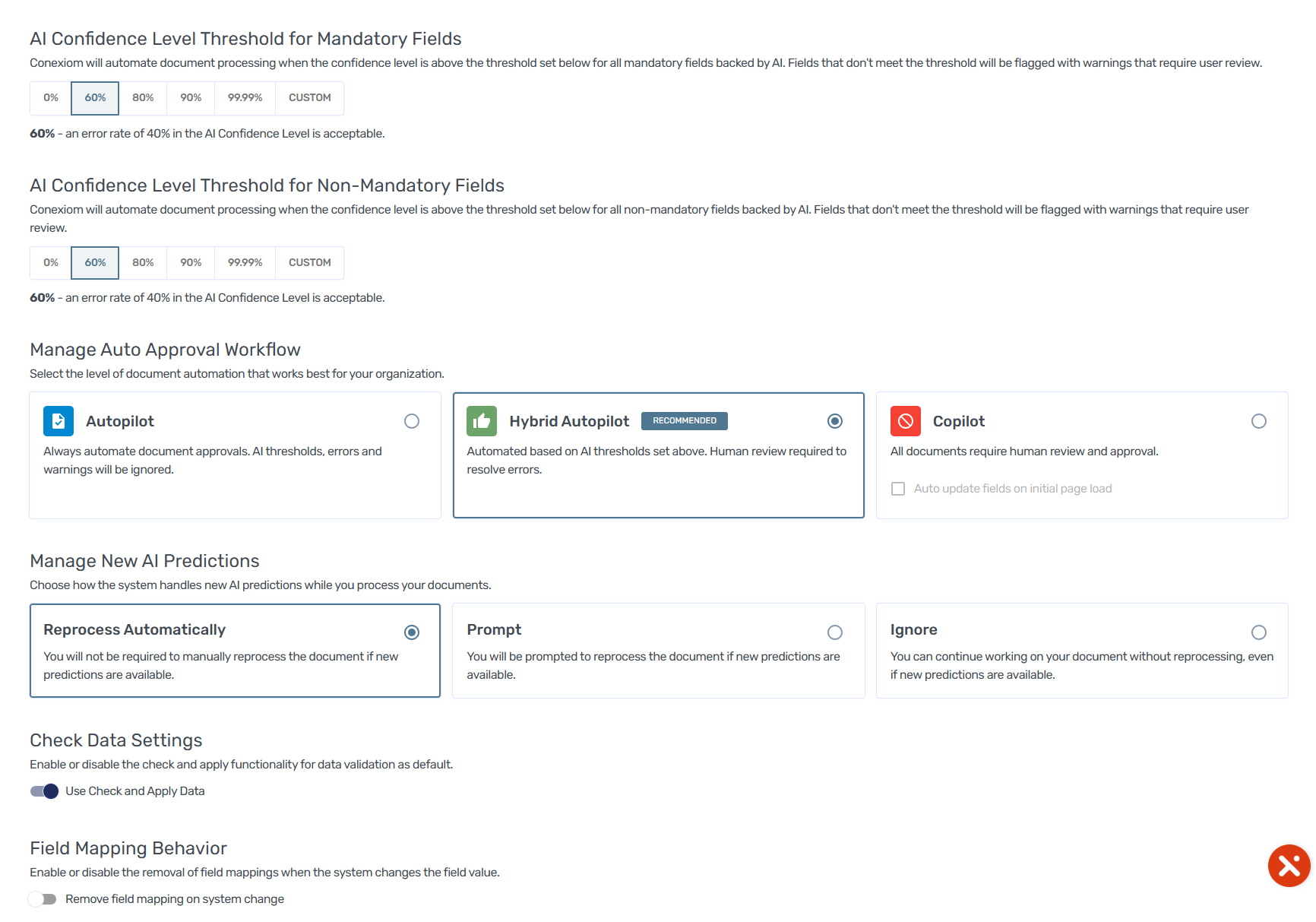
Setting AI Confidence-Level Threshold for Non-Mandatory fields
AI thresholds ensure that the AI extracts data accurately enough for a customer’s business needs.
When in Express with a document displayed, hover over any field that is pre-populated by machine learning and Express displays an AI confidence score in a tooltip text box that show how reliable the information is in its current state. Fields that do not meet the configured threshold are highlighted in yellow as warnings.
Set the confidence level you want the AI to use when it extracts data from your documents. The AI will then check the data by comparing it to the outcome to see if the confidence level is achieved. If a field’s confidence score is below the defined threshold, the system flags relevant fields with warnings or errors.
The default setup is as follows:
-
All fields are configured as Mandatory
-
Document automation level is set to Copilot
-
Mandatory field threshold is set to 90%
-
Non-Mandatory field threshold is set to 60%
AI thresholds can be disabled by setting them to 0%.
When AI thresholds are disabled, documents are only flagged when they contain validation errors.
Setting Document Auto-Approval Workflow
Setting the document automation level determines what system validations and warnings are applied, preventing the processing of documents with critical errors.
-
Set AI accuracy thresholds for mandatory and non-mandatory fields, ensuring that only documents meeting these criteria are automatically approved.
-
Set Autopilot field data recommendations (such as validations, or cross-reference lookup data) are automatically applied.
-
Documents that do not meet the configured automation criteria are flagged with an alert, prompting manual review.
To set the level of document automation, select from the following:
|
Selection |
|
|---|---|
|
Autopilot |
Documents are automatically approved, regardless of whether they contain validation errors, warnings, or AI threshold concerns. Data corrections are applied by the customer after the document data is delivered into their ERP system. |
|
Hybrid Autopilot |
Documents are only auto-approved if they meet predefined AI accuracy thresholds, and contain no validation errors. |
|
Copilot (default): |
Recommended for customers who want to make the decision each time. Documents will require manual review and approval. Tip: Select the checkbox in Express to have the system automatically check and apply data when opening a document. |
Managing Refreshed AI Predictions
You can have the system automatically refresh AI predictions for queued documents — documents that were submitted but not yet reviewed — ensuring updated predictions are applied upon opening the document without manual reprocessing.
Choose whether updated predictions are applied automatically without prompting, applied manually, or prompted each time a queued document is opened. Select from the following:
|
Selection |
Definition |
|---|---|
|
Reprocess Automatically |
When you open a queued document and updated AI predictions are available, the system automatically reprocesses the document. A brief loading screen may appear, after which the document will reload with refreshed predictions in Express. No action is required. |
|
Prompt |
When you open a queued document with new AI predictions, the system displays a prompt. Select from the following: Reprocess: Applies updated predictions. The document may briefly reload after a short processing screen. Ignore: Leaves the document unchanged, using the existing predictions, which may or may not reflect the latest AI learning. |
|
Ignore |
When you open a queued document, no prompt appears, even when new predictions are available. Proceed with the original predictions, which may or may not reflect the latest AI learning. |
If an error occurs during the auto-refresh process, the system notifies you through a non-intrusive message.
Controls whether field mappings are removed when the system or plugin updates a field value.
Check Data Settings
This setting controls which data check action is selected by default in the user interface after field values are changed.
Conexiom provides two actions: Check Data and Check and Apply Data.
-
Check Data reviews the values currently populated on the right‑hand side of the Express page and does not re‑run validations or classifications.
-
Check and Apply Data re‑runs all applicable validations, rules, and classifications after changes are made.
Enabled (default)
Check and Apply Data is the default action in the UI.
After changes, all applicable validations, rules, and classifications are re‑run.
Updated data is fully reprocessed by the system.
This setting provides flexibility for customers who want full validation to run automatically after changes versus those who prefer a lightweight data check by default.
Disabled
Check Data is the default action in the UI.
Only the existing values on the right‑hand side are checked.
Validations and rules are not re‑run unless Check and Apply Data is selected from the dropdown.
Field Mapping Behavior
This setting controls whether field mappings are removed when the system or plugin updates a field value.
Field mappings link fields detected in incoming documents (PDF, Excel, etc.) to Conexiom document fields on the right‑hand side of the Express page.
Disabled (default)
-
Field mappings are preserved when system updates occur.
-
Fields continue to be predicted from future documents.
-
AI predictions and confidence scores continue to apply to this field.
Enabled
-
Field mappings are removed when the system updates a field.
-
The linkage between the document field and the Conexiom field is broken.
-
Over time, the field may stop being predicted from future documents.
This setting provides flexibility for customers who want to maintain AI‑based field predictions across system changes versus those who are comfortable with mappings resetting when updates occur.
Preserving field mappings (setting disabled) is especially important when system updates are applied based on the original predicted value (for example, part number replacements or UOM transformations). Keeping this linkage ensures fields continue to be predicted correctly after system updates.