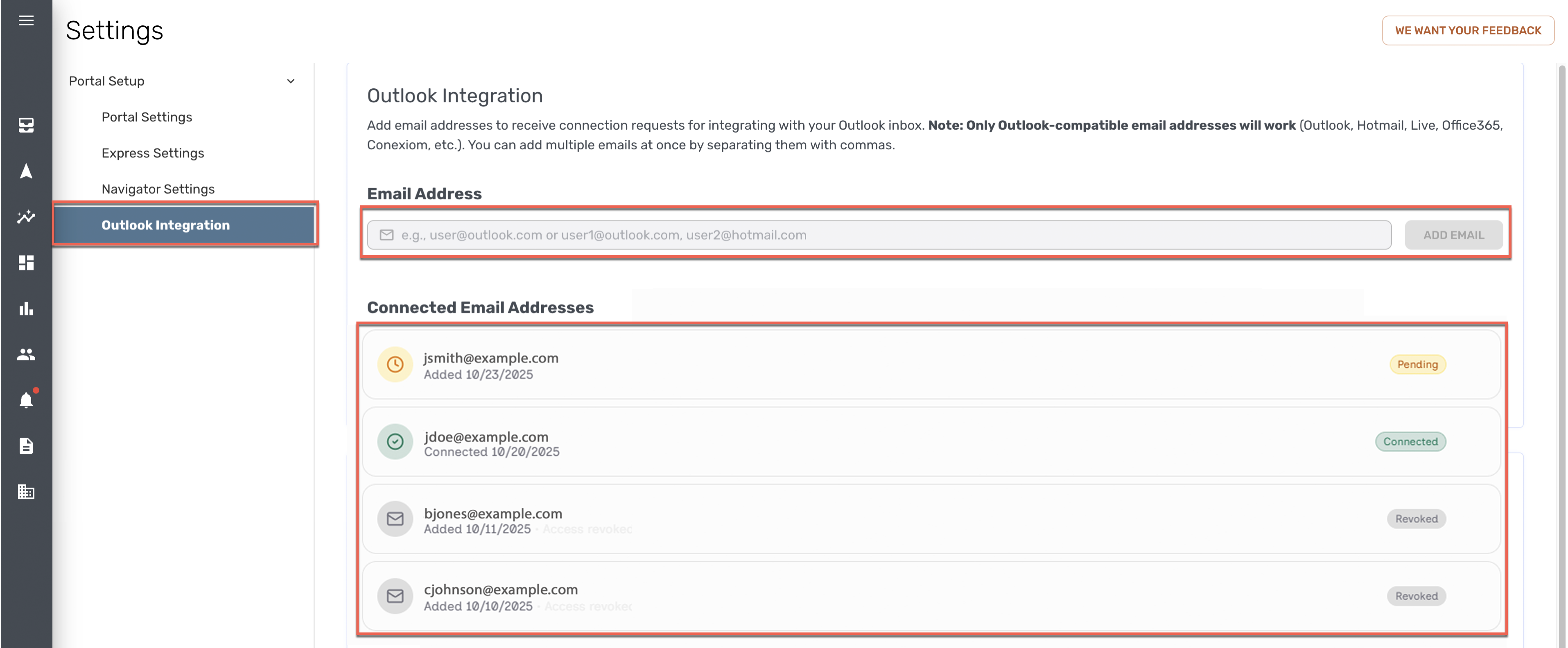
Use our Email Integration so that email orders can be sent reliably to Conexiom for processing without complex rule setup or manual help from team-members.
Overview
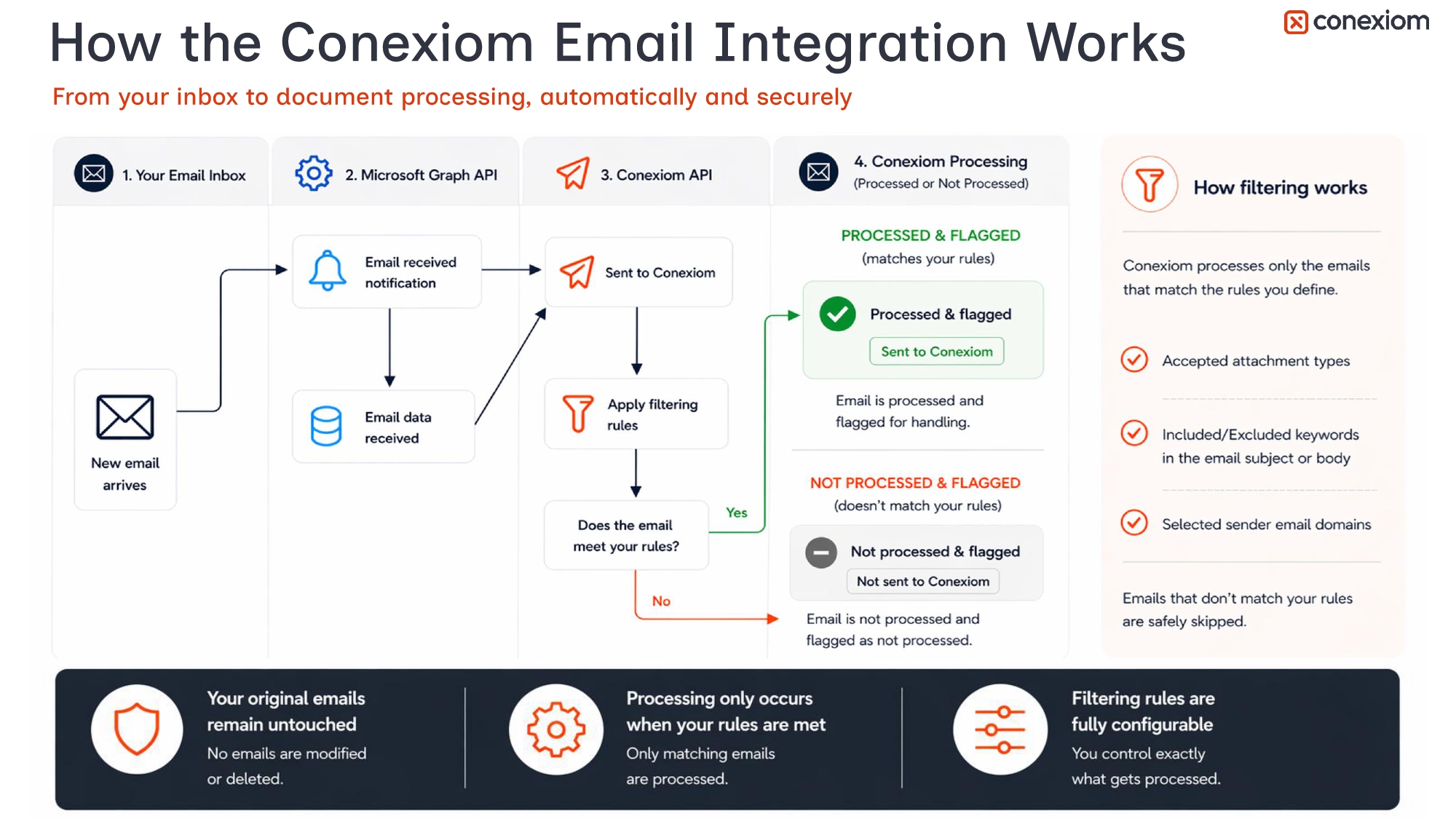
With Email Integration, Conexiom reliably captures email orders for processing without team members needing to participate manually in the forwarding process. After you integrate the system, it acts as a “listener” for messages that are appropriate for processing.
When processed, the messages will be automatically forwarded to Conexiom. Your inbox will provide clear labels for each email it evaluated, being marked as either “Sent to Conexiom” or “Not Sent to Conexiom.” (If the document is sent to Conexiom but encounters an issue during processing, a listing will display either with a “Not Processed” status or it will trigger an alert that requires review).
It performs each of the following:
-
Automatically detects and forwards order-related emails.
-
Applies simple, scalable rules to select only relevant documents for processing, including domains, keywords, attachment types.
-
Reduces manual steps and eliminates bottlenecks when team members can’t keep up.
-
Ensures all qualifying emails get into the system consistently.
Requirements
Email Integration is currently supported for mailboxes hosted in Microsoft 365 (Exchange Online) only. The email domain must be managed within an active Microsoft 365 tenant for the integration to function. Mailboxes hosted outside of Microsoft 365 (including on-premise or third-party providers) are not supported for this integration.
If you are unsure whether your mailbox is hosted in Microsoft 365, please contact your IT administrator before enabling Email Integration.
For more, see: Customer Qualifying Criteria for Email Integration with Outlook
Integrating Your Email
To integrate the needed emails, first add accounts, then add email filters, fine tuning your work with best practices, and then finally, ensure that your system is secure. Click the links in the following table for details on each process.
|
To Do This |
Go Here |
|---|---|
|
Add each email inbox from which you want to receive orders from buyers. |
|
|
Add filters to allow you to control which emails and attachments are accepted and which are screened out. |
|
|
Fine tune your work with the best advice on how to configure email filters. |
|
|
Address authentication, permission scope, mailbox actions, data access, notifications, and access revocation. |
Securing Email Integration: Authentication, Permissions, and Data Access |