
Manage email filters to forward emails through default and domain-specific rules.
Adding Filters
Email Filters allow you to control which emails and attachments are accepted and processed by Conexiom. You can set default filtering rules that apply across all buyer domains, and create domain-specific overrides for more granular control. For more information on buyer lists, click here.
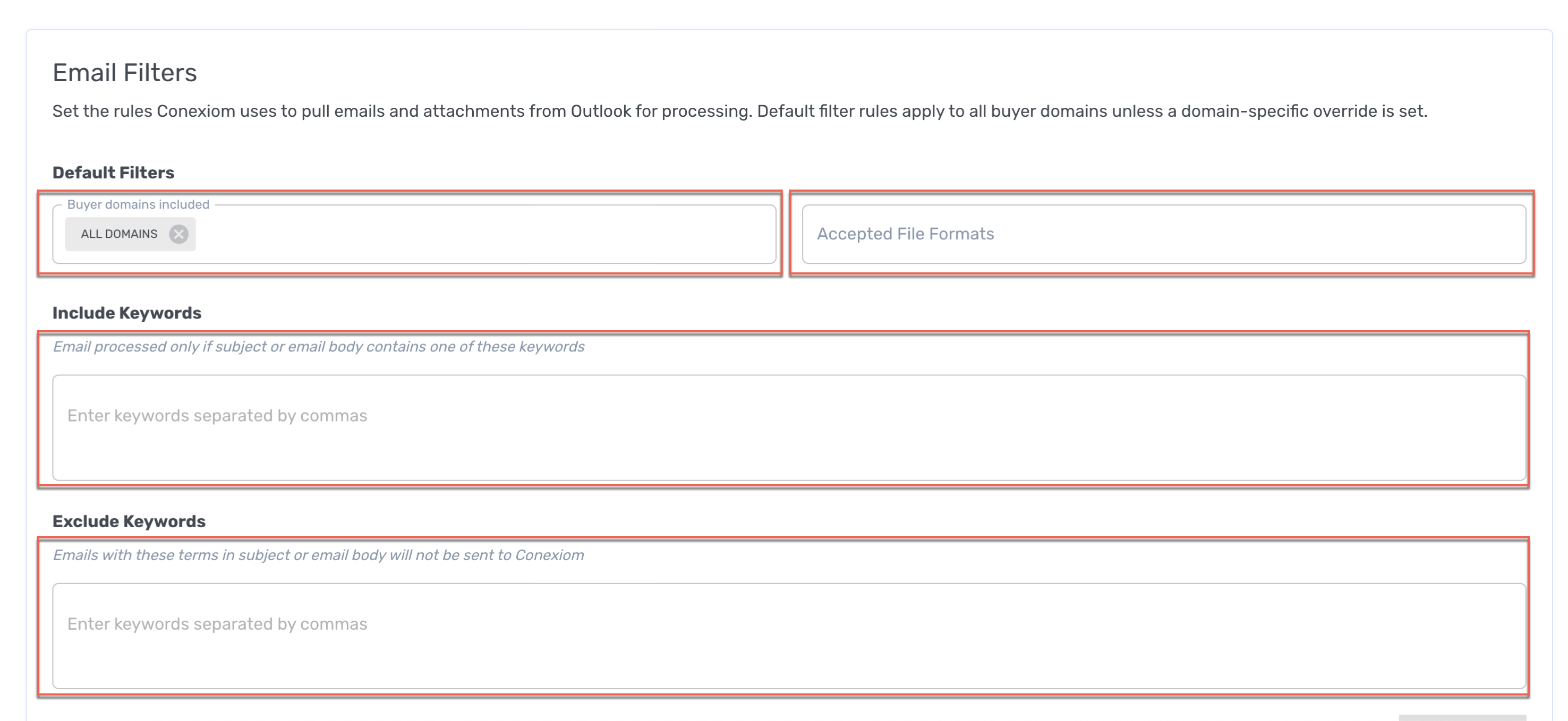
How Email Filters Work
The email filtering system operates in two possible ways:
-
Default filters: Apply to all buyer domains unless a domain-specific override exists
-
Domain-specific filters: Overrides take precedence over default filters for specific domains
When an email arrives, the system does the following:
-
Checks if a domain-specific filter exists for the sender's domain
-
If yes, applies the domain-specific filter rules
-
If no, applies the default filter rules
The system processes the email only if it passes all filter criteria.
Default Filters
Default filters can consist of these components:
-
Which buyer domains are included
-
Acceptable file formats
-
The keywords that are included
-
The keywords that are excluded
Domain-Specific Overrides
Domain-specific overrides allow you to apply different filtering rules for specific buyer domains. When an override exists, it completely replaces the default filter rules for that domain.
Like filters, override configurations can consist of these components:
-
Which buyer domains are included
-
Acceptable file formats
-
The keywords that are included
-
The keywords that are excluded
Filter Logic and Evaluation Order
Filter Check Details
The following details how emails are checked by filters. Using it in advance, you can check your filter design for accuracy.
File Format Check
-
Email must have at least one attachment matching accepted formats
-
If no accepted formats specified, all formats pass
-
If accepted formats specified, at least one attachment must match
Include Keywords Check
-
If Include keywords list is empty: Check passes automatically
-
If Include keywords list has values: Subject or body must contain at least one keyword
-
Keywords are case-insensitive
-
When using multiple keywords, separate them with a comma and a space
For example: "PO", "purchase order", "urgent"
Exclude Keywords Check
-
If Exclude keywords list is empty: Check passes automatically
-
If Exclude keywords list has values: Subject and body must not contain any keyword
-
Keywords are case-insensitive
-
If any Exclude keyword matches, email is blocked
-
When using multiple keywords, separate them with a comma and a space
For example: "quote", "estimate", "inquiry"
Combined Logic
Email is processed if the following are in place:
-
File Format matches
-
Include keywords match (or the Include Keywords list is empty)
-
No Exclude keywords match (or the Exclude List is empty)
Examples
Example 1: Basic Setup - “Accept All Orders”
|
Business Need |
Process all incoming purchase orders from any buyer. |
||||||||
|---|---|---|---|---|---|---|---|---|---|
|
Configuration |
Default Filters:
|
||||||||
|
How It Works |
|
||||||||
|
Example Emails |
|
Example 2: “Accept Only Priority Orders”
|
Business Need |
Only process urgent or high-priority purchase orders to reduce noise. |
||||||||
|---|---|---|---|---|---|---|---|---|---|
|
Configuration |
Default Filters:
|
||||||||
|
How It Works |
|
||||||||
|
Example Emails |
|
Example 3: “Accept Multiple Buyers with Different Requirements”
|
Business Need |
|
|---|
|
Business Need |
|
||||||||||||||||||||||||
|---|---|---|---|---|---|---|---|---|---|---|---|---|---|---|---|---|---|---|---|---|---|---|---|---|---|
|
Configuration |
Default Filters:
Domain-Specific Override #1:
Domain-Specific Override #2:
|
||||||||||||||||||||||||
|
Example Emails |
For emails from buyer@acme.com (uses default filter):
For emails from purchasing@bigretail.com (uses override #1):
For emails from orders@fastfood.com (uses override #2):
|