
The Conexiom Help Center is where you can track, manage, and communicate about support tickets after they are submitted. It provides visibility into ticket status, conversation history, and updates-without changing how you contact Support.
Direct Link Conexiom Help Center: https://conexiom.atlassian.net/servicedesk/customer/portals
Note: New support requests are not created in the Help Center. Requests are submitted via the Conexiom Portal. For submitting support requests, see the Contacting Customer Support article.
Accessing the Help Center
1. Open the request
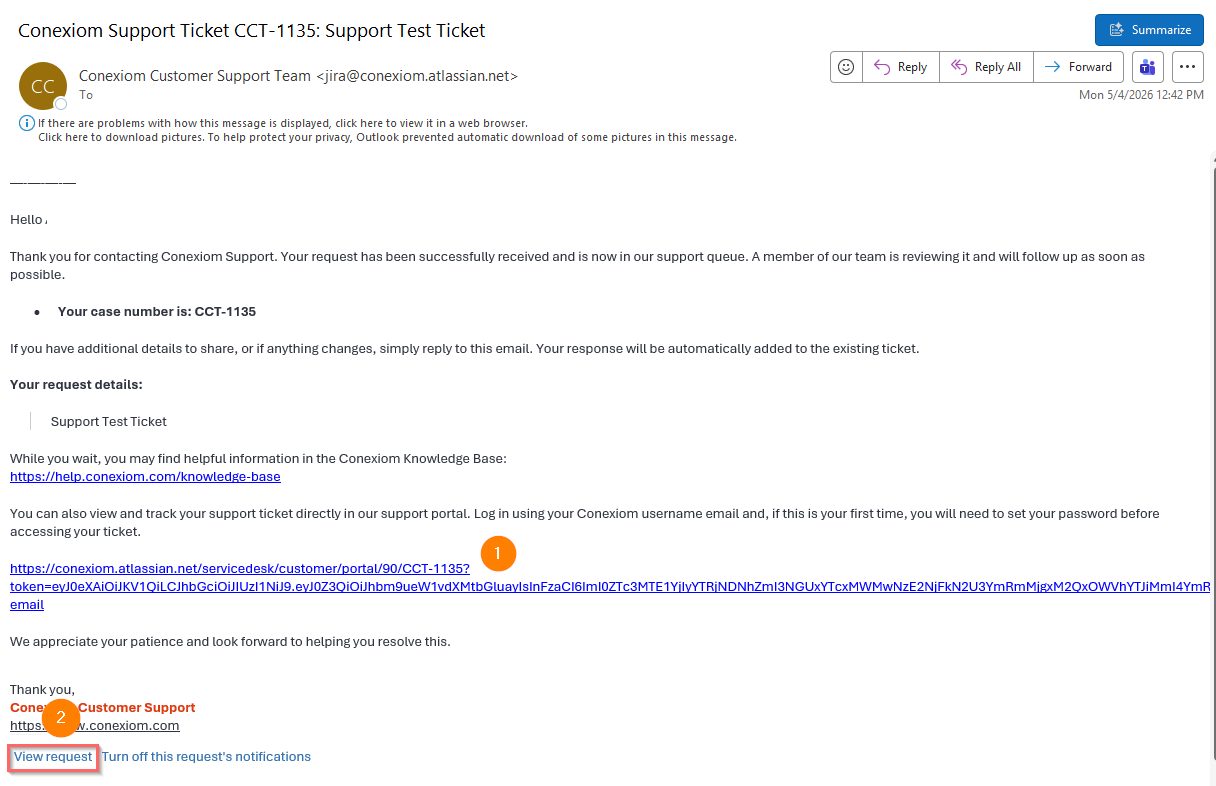
From any Conexiom support email notification, click the ticket link (1) or ‘View Request’ (2).
2. Create your account/ Log in to the portal
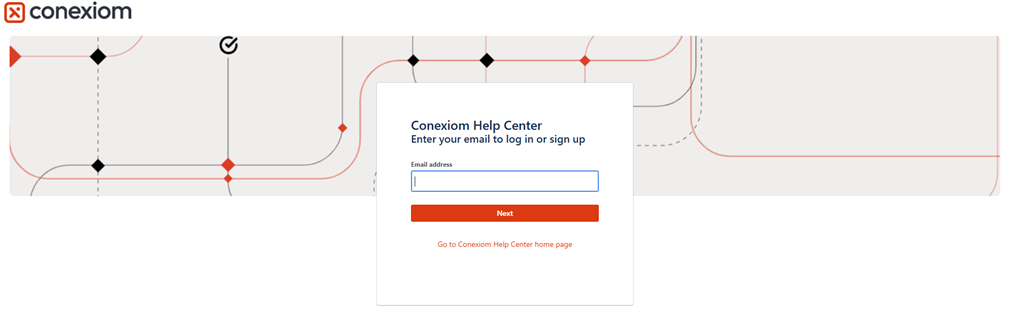
After clicking on the link, sign in using your credentials.
If this is your first time accessing the Help Center (or don’t have an existing Jira account), you will be prompted to create a password.
3. View your tickets
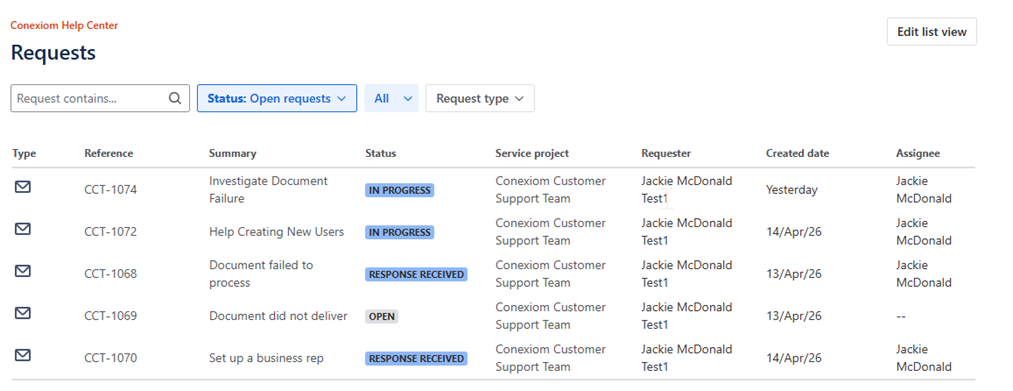
Once logged in, you will see your support tickets, including Open, In Progress, Resolved, and Closed requests.
What You Can Do in the Help Center
Once logged in, you can manage your existing support tickets.
Available Actions
-
My Requests – View all support tickets you’ve submitted
-
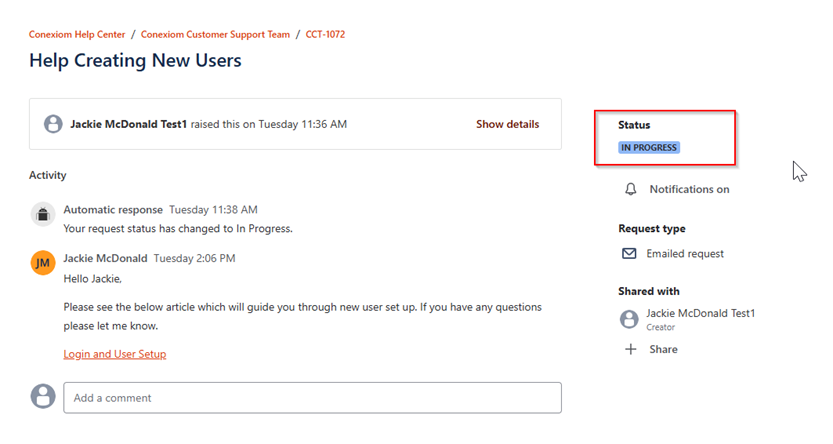
Ticket Status – See real-time status updates for each ticket
-
Ticket Details – View the full conversation history, attachments, and activity log
-
Add a Comment – Reply to open tickets to provide more information or ask questions
Understanding Ticket Statuses
Each ticket shows a status that indicates where it is in the support process.
|
Status |
What It Means |
|
Open |
Request received and awaiting initial review |
|
In Progress |
A Support agent is actively working on the issue |
|
Awaiting Response |
Support is waiting for additional information from you |
|
Response Received |
You have responded and the ticket is awaiting action from Conexiom |
|
Escalated |
The ticket has been escalated to a specialist team |
|
Resolved |
A solution has been provided and is pending confirmation |
|
Closed |
The issue is confirmed resolved and archived |
Reopening a Resolved Ticket
If a ticket is marked Resolved but the issue is not fully addressed:
-
Reply to the resolution notification email within the review window.
-
The ticket will automatically reopen and notify the Support team.
Email Notifications
Email is the primary way the Support team communicates with you. These notifications ensure you are always informed without needing to log into the portal.
You will receive notifications when:
-
A support request is received and a ticket is created
-
A Support agent replies or adds a comment
-
Additional information is requested
-
A ticket is resolved or closed
Replying to Notifications
You can reply directly to any notification email. Your reply will be automatically added as a comment to the corresponding ticket and will be visible to the support representative handling your case.
Tip: Always reply to the original ticket email. Creating a new email may result in a separate ticket.
Frequently Asked Questions
Do I have to use the Help Center?
No. You can continue working with Support entirely through email. The Help Center is optional and provides visibility and tracking.
Can I submit a new request in the Help Center?
No. New support requests must be submitted via email or through the Contact Support option in the Conexiom Portal.
See Contacting Customer Support for step-by-step instructions.
Can I see tickets from my colleagues?
Tickets can be shared by including you on the original support email or adding you as a participant on the ticket.
How do I reset my Help Center password?
From the Help Center login page, select Forgot password and follow the prompts.